Logic Pro
DarkStage follows Logic Pro's transport and timeline over HUI, with MIDI Time Code and MIDI Machine Control carrying timecode.
Before you begin: install and launch DarkStage, open DAW Sync, choose Logic Pro, confirm DAW Sync is running, and leave DarkStage open while you configure Logic. See DAW Setup.
Logic Pro setup
1. Add a HUI control surface
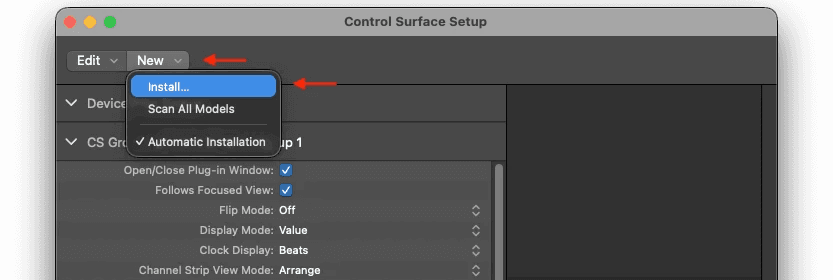
In Logic Pro, open the Control Surfaces setup window and add a HUI control surface, then assign the DarkStage HUI input and output ports.
Logic Pro menu → Control Surfaces → Setup
2. Add the HUI device
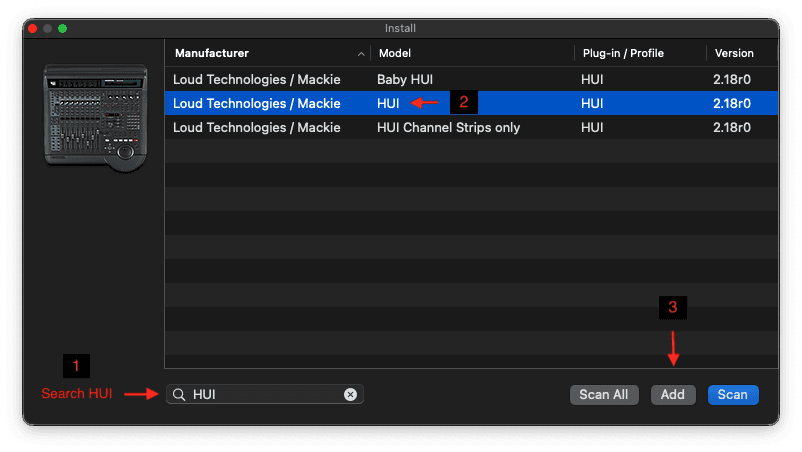
Type HUI in the search box, choose the HUI device from the list, click Add, then close the window.
Search HUI → Select HUI → Add → Close
3. Set the HUI I/O and Clock Display
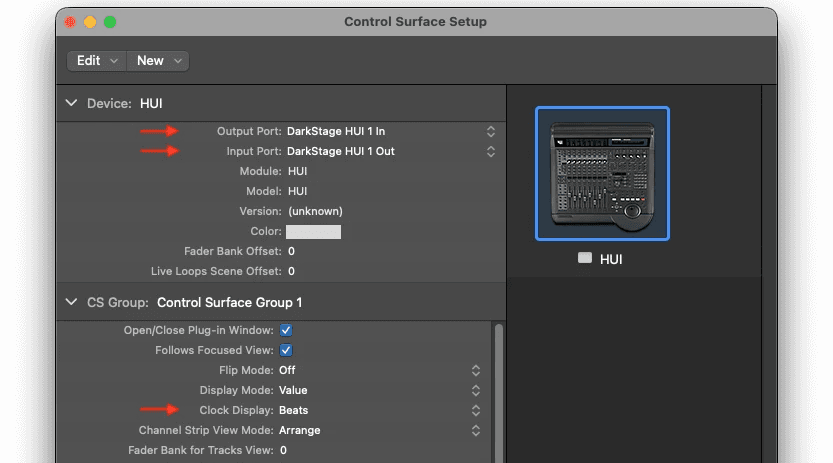
Launch DarkStage and open DAW Sync. Confirm that DAW Sync is running before opening or configuring Logic Pro. In DarkStage's DAW Sync settings, set:
Clock Display → Beats
This gives the correct bar-and-beat counter behaviour while Logic is running.
4. Transmit MIDI Time Code
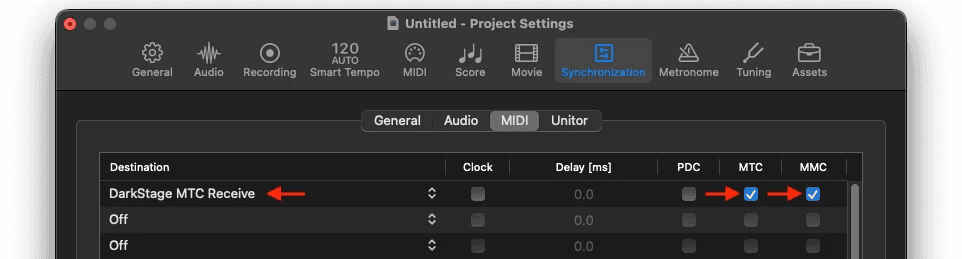
In Logic Pro, open File ▸ Project Settings ▸ Synchronization ▸ MIDI. Enable MIDI Time Code and Machine Control transmission, and set the destination to:
DarkStage MTC Receive
5. Press Play
Press Play in Logic Pro. DarkStage should now follow:
- Play and stop
- Timeline position
- Bar and beat position
- SMPTE timecode
- Logic transport status
Logic Pro troubleshooting
If HUI transport works but the time display does not move, confirm that:
- MIDI Time Code transmission is enabled.
- DarkStage MTC Receive is selected as the destination.
- MIDI Machine Control transmission is enabled.
- DarkStage DAW Sync is running.
- Clock Display is set to Beats.
Need more help?
Email support@mydarkstage.com and we'll help you get set up.