Plug-ins
Two different things. DarkStage Capture (AU, VST3 and AAX) is a plug-in you put in your DAW to send audio to DarkStage. Plugin Meters shows third-party meter plug-ins inside a DarkStage overlay.
DarkStage Capture
An Audio Unit, VST3 and AAX plug-in. It passes your audio through unchanged, with zero added latency, and sends a copy to DarkStage. DarkStage then meters exactly the point in your session where you inserted it.
Do I need it?
Often you don't. Mac System Sound meters everything the Mac plays, with nothing to install. Use Capture when what the Mac plays isn't what you want to measure:
| Situation | Why Capture helps |
|---|---|
| Room correction or speaker calibration (SoundID, ARC, Trinnov…) on your monitor output | Mac System Sound hears the corrected signal. Capture, inserted before the correction, meters your actual mix. |
| Monitor controller plug-ins, headphone simulation or a reference-level trim on the master | Same reason: meter before the monitor processing. |
| You want to meter one point, such as the vocal bus, the pre-limiter mix or a stem | Insert Capture exactly there. |
| Other apps are making sound (browser, video call, notifications) | Capture hears only your DAW, so other apps never touch your LUFS readings. |
Not sure? Choose Automatic. DarkStage uses Capture while your DAW is playing through it and falls back to Mac System Sound when it isn't. You get the right source without switching by hand.
Install
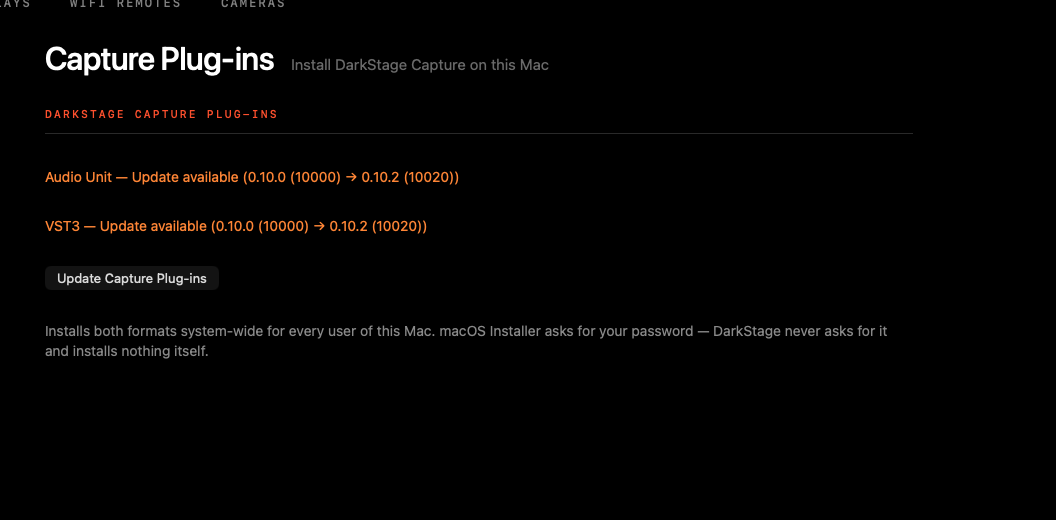
- In DarkStage, go to Settings ▸ Capture Plug-ins and click Install Capture Plug-ins.
- The macOS Installer asks for your password. The plug-ins are installed for all users of this Mac.
- Restart your DAW, or rescan plug-ins, so it finds DarkStage Capture.
Use it
- Insert DarkStage Capture on your master or mix bus, after your mix processing and before any monitor or room-correction plug-in.
- In Settings ▸ Stereo Audio, choose Automatic or DarkStage Capture Plug-in.
- Press play. The plug-in's panel reads Capture active and the Stereo Audio page shows it as the live source.
Where to put it
| You want to meter | Insert Capture |
|---|---|
| The final mix, as delivered | Last on the master bus, after the limiter, before monitor correction |
| How hard the mix hits the limiter | On the master, just before the limiter |
| A single bus or stem | Last on that bus |
| Two things at once | Assign a second source to Stereo Input B, then set each widget to Input A or B |
Pro Tools: DarkStage Capture AAX
On Pro Tools, and especially HDX, DarkStage Capture is also an AAX Native insert with a second job: it brings your Mac's own audio into the Pro Tools monitor path.
The HDX problem it solves. On an HDX system, Pro Tools owns the interface. A browser reference, a client's Dropbox link, a video call or a sample preview plays through the Mac's speakers or not at all. It never reaches your monitors, your room correction or your meters.
How it's wired:
Mac apps ─▶ DarkStage Bridge ──┐
                              ├─▶ DarkStage Capture AAX ─▶ room correction ─▶ monitors
Pro Tools mix bus ────────────┘            └─▶ DarkStage meters
- Set the Mac's sound output to DarkStage Bridge (System Settings ▸ Sound ▸ Output). Mac apps now play into it.
- Insert DarkStage Capture (AAX) on your monitor path: the master fader or monitor bus, before any room-correction plug-in.
- Your monitors now carry Pro Tools plus Mac audio, balanced on the plug-in's panel. DarkStage meters whatever you choose to send it.
| Control | What it does |
|---|---|
| PT Gain / PT Mute | Level of the Pro Tools signal through the plug-in (−60 to +12 dB, default 0 dB). |
| System Gain / System Mute | Level of the Mac audio arriving from DarkStage Bridge. |
| Send to DarkStage | Chooses which sources DarkStage meters: Pro Tools (on by default), System (off by default), or both summed. |
| DarkStage Fader Tap / Mute Tap | Pre or Post (default) for each source. Pre meters the signal before the plug-in's own gain and mute, so the meters keep reading while you turn the monitors down. |
- Zero added latency. It runs as a Native insert on HDX systems; there's no DSP or AudioSuite version.
- Independent of the app. The listening path keeps working even if DarkStage is closed. Only the metering needs DarkStage running.
- The fader is drag-only, so a stray click never jumps your monitor level. ⌥-click resets to 0 dB, and hold ⌘ for fine control.
Use cases
- Reference tracks on HDX: play a streaming reference in the browser and hear it through the same monitors and room correction as your mix. Send System to DarkStage too, and compare loudness on two LUFS meters.
- Client review: keep a video call audible on the main monitors during a playback session.
- Talk-down level: set the Fader Tap to Pre, so turning PT Gain down for a conversation doesn't drop the meters.
No room correction and no need for Mac audio? You can still meter Pro Tools with Choose My Audio Device and the Pro Tools Audio Bridge.
Plug-in panel messages
| Panel says | Meaning |
|---|---|
| Capture active | Working. The format line shows sample rate and channel layout. |
| Waiting for DarkStage | DarkStage isn't running or hasn't connected yet. Open DarkStage and check Settings ▸ Stereo Audio. |
| Another instance is capturing | A second DarkStage Capture in your session already has the connection. Remove or bypass the extra one. |
| Capture unavailable | The plug-in can't reach DarkStage. Restart the DAW; if that doesn't fix it, reinstall from Settings ▸ Capture Plug-ins. |
Plugin Meters (beta)
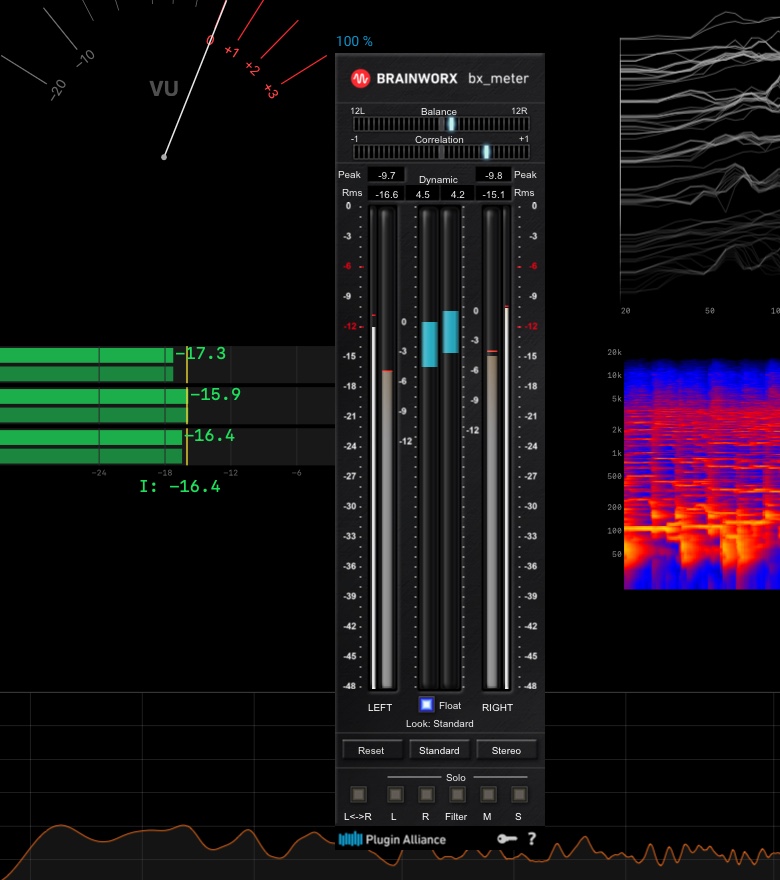
Already own a favourite meter plug-in? Plugin Meters loads an Audio Unit meter and shows its own window on a DarkStage overlay, fed from the same source as DarkStage's meters.
Plugin meters are listen-only. They never process or change the audio you hear.
Load a meter
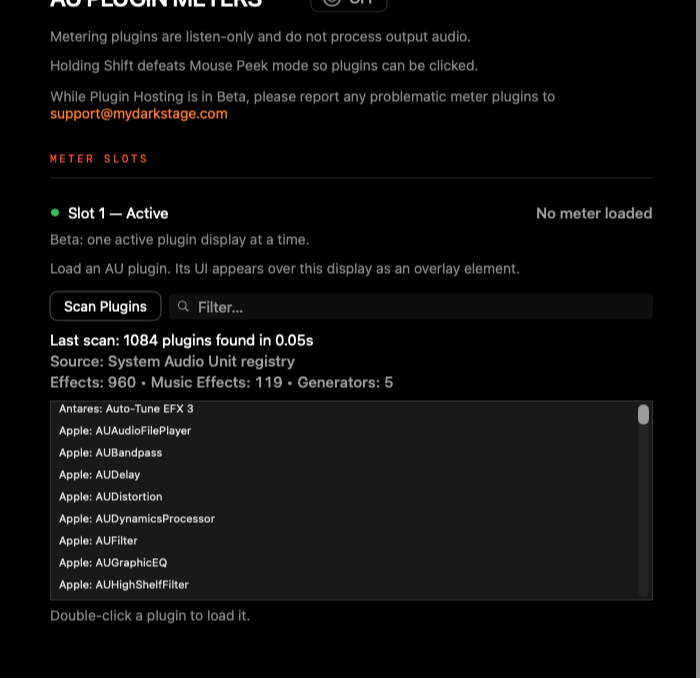
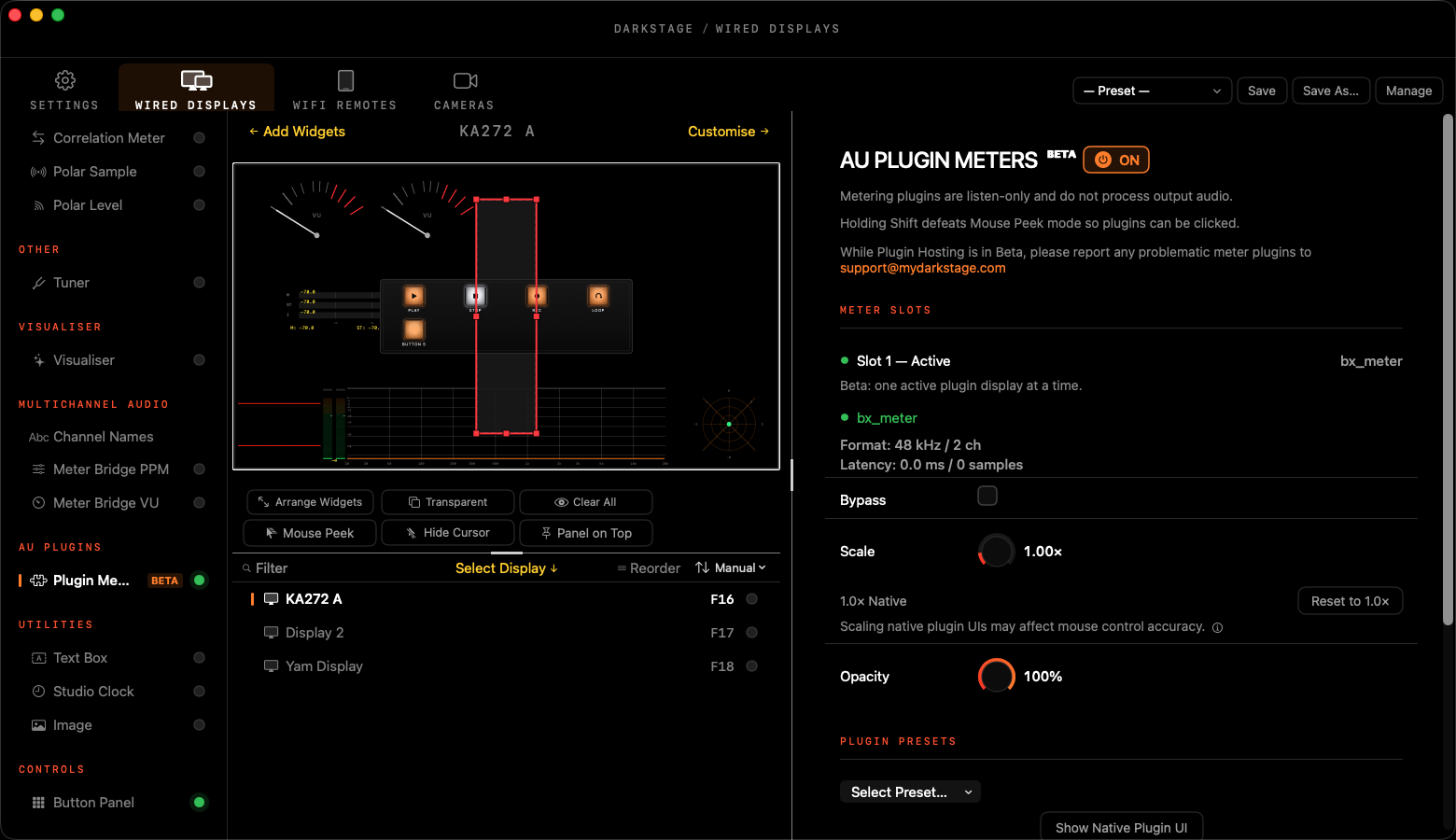
- Open Wired Displays and select the display. In the sidebar, under AU Plugins, click Plugin Meters.
- Click Scan Plugins. Type in Filter… to narrow the list.
- Double-click a plug-in to load it into Slot 1. Its interface appears on that display's overlay.
- Adjust Scale, Opacity and position, or recall one of its own Plugin Presets.
Controls
- Show Native Plugin UI / Show Plugin Window: switch between the embedded view and a separate window.
- Bypass pauses the meter. Reset to 1.0× restores its size and Recenter Plugin brings it back on screen.
- Engine: Stop, Refresh or Restart if a plug-in stops responding.
- Unload Plugin removes it.
Hold Shift to stop Mouse Peek hiding the overlay, so you can click the plug-in's own buttons.
Type meter in Filter… after scanning. The full list includes every effect on your Mac.
Leave Scale at 1.0× if you need to click the plug-in's controls. Scaling a native interface can put its buttons out of line with the mouse.
Beta limits
- One plugin meter, on one display at a time.
- Audio Unit meters only, shown with their own interface.
- If you change input device, the meter may pause for a moment, then reload by itself.
Use cases
- Keep the loudness meter your clients' delivery specs name in view on the overlay, without it taking a slot in your session.
- Put a phase or stereo analyser you already know on the producer's screen.
If a meter plug-in misbehaves, please tell us which one at support@mydarkstage.com.